---
title: Adding a Department to a job posting
description: Learn about Departments in CareerPlug, which you can use to manage user access to jobs in your CareerPlug account. Learn how to create a new Department and add it to a new (or existing) job.
---
[Skip to content](https://support.careerplug.com/adding-a-department-to-a-job-posting#main-content)
[Submit a Request](https://support.careerplug.com/kb-tickets/new?hsLang=en)
[![CareerPlug-Logo-2025.png\]](https://support.careerplug.com/hs-fs/hubfs/CareerPlug-Logo-2025.png?width=230&height=40&name=CareerPlug-Logo-2025.png)](https://support.careerplug.com?hsLang=en)
Open main navigation
Close main navigation
- [Submit a Request](https://support.careerplug.com/kb-tickets/new)
- [Get help now!](https://support.careerplug.com/help)
[Get help now!](https://support.careerplug.com/help?hsLang=en)
How can we help?
- There are no suggestions because the search field is empty.
1. [Help Center](https://support.careerplug.com/?hsLang=en)
2. [Attract: Job Postings](https://support.careerplug.com/attract-job-postings?hsLang=en)
3. [Existing Job Postings](https://support.careerplug.com/attract-job-postings?hsLang=en#existing-job-postings)
# Adding a Department to a job posting
### What is a Department?
A Department gives you another way to manage which users have access to jobs in your CareerPlug account.
For example, if you want hiring managers to only have access to certain jobs and applicants associated with a location (or locations), you can create a Department, add these hiring managers to the Department, and add the Department to a new (or existing) job.
### How do I create a new Department?
1\. Navigate to **Settings (gear icon) \>** **My Organization \> Departments**.

2\. Click the **plus (+) icon** in the upper-left corner of the Departments page.

3\. In the Create new department drawer, enter a **Name** for the Department.
4\. Add users who you want to have access to this Department's jobs by starting to type their name in the **Department managers** field and selecting it when it appears in the drop-down menu. You can also click the empty field and select any available name directly from the drop-down menu.
5\. Click the **Create Department** button.

### How do I add a Department to a job posting?
Once you've created a new Department, you can add it to any new (or existing) job posting.
1\. Navigate to your **Jobs** page.
2\. Click the **+ New Job** button in the upper right corner of your Jobs page.
3\. Choose whether to use a **Job from Template** or **Create From Scratch** from the drop-down menu.

4. [Configure your job posting](https://support.careerplug.com/posting-a-job?hsLang=en) as you would for any new job.
5\. When you reach the Permissions section on the Hiring Settings tab, select a **Department** from the drop-down menu.
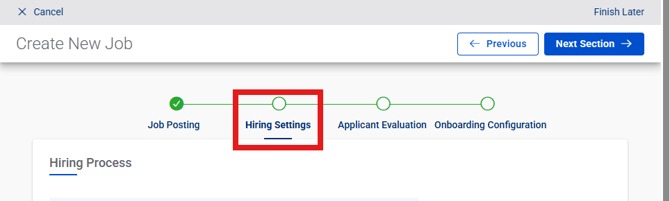

6\. Finish [configuring your job posting](https://support.careerplug.com/posting-a-job?hsLang=en) and and post your job.
You'll now see the Department associated with your job below the job title on your Jobs page.

#### Need to add a Department to an existing job posting?
1\. Navigate to your **Jobs** page.
2\. Click the **Edit (pencil) icon** to the right of the job you want to add a department to.

3\. Click the **Hiring Settings** tab.

4\. Scroll down to the Permissions section and select a **Department** from the drop-down menu.

5\. Click the **Update Job Post** button in the top-right (or bottom-right) corner of the page.

- [Troubleshooting](https://support.careerplug.com/troubleshooting?hsLang=en#main-content)
- [Contacting Support](https://support.careerplug.com/troubleshooting?hsLang=en#contacting-support)
- [Top Support Issues](https://support.careerplug.com/troubleshooting?hsLang=en#top-support-issues)
- [Video Library](https://support.careerplug.com/troubleshooting?hsLang=en#video-library)
- [Account](https://support.careerplug.com/account?hsLang=en#main-content)
- [Billing](https://support.careerplug.com/account?hsLang=en#billing)
- [Account Management](https://support.careerplug.com/account?hsLang=en#account-management)
- [Account Configuration](https://support.careerplug.com/account?hsLang=en#account-configuration)
- [Notifications](https://support.careerplug.com/account?hsLang=en#notifications)
- [Getting Started](https://support.careerplug.com/account?hsLang=en#getting-started)
- [What's New?](https://support.careerplug.com/whats-new?hsLang=en#main-content)
- [Monthly Updates](https://support.careerplug.com/whats-new?hsLang=en#monthly-updates)
- [Announcements](https://support.careerplug.com/whats-new?hsLang=en#announcements)
- [Attract: Job Postings](https://support.careerplug.com/attract-job-postings?hsLang=en#main-content)
- [Hiring Process](https://support.careerplug.com/attract-job-postings?hsLang=en#hiring-process)
- [New Job Postings](https://support.careerplug.com/attract-job-postings?hsLang=en#new-job-postings)
- [Existing Job Postings](https://support.careerplug.com/attract-job-postings?hsLang=en#existing-job-postings)
- [Attract: Targeted Recruiting](https://support.careerplug.com/attract-targeted-recruiting?hsLang=en#main-content)
- [Careers Page](https://support.careerplug.com/attract-targeted-recruiting?hsLang=en#careers-page)
- [Job Boards](https://support.careerplug.com/attract-targeted-recruiting?hsLang=en#job-boards)
- [Additional Sources](https://support.careerplug.com/attract-targeted-recruiting?hsLang=en#additional-sources)
- [Evaluate: Communication](https://support.careerplug.com/evaluate-communication?hsLang=en#main-content)
- [Applicant Management](https://support.careerplug.com/evaluate-communication?hsLang=en#applicant-management)
- [Applicant Tracking](https://support.careerplug.com/evaluate-communication?hsLang=en#applicant-tracking)
- [Messages](https://support.careerplug.com/evaluate-communication?hsLang=en#messages)
- [Contacting Applicants](https://support.careerplug.com/evaluate-communication?hsLang=en#contacting-applicants)
- [Evaluate: Interviews](https://support.careerplug.com/evaluate-interviews?hsLang=en#main-content)
- [Pre-Interview](https://support.careerplug.com/evaluate-interviews?hsLang=en#pre-interview)
- [Post-Interview](https://support.careerplug.com/evaluate-interviews?hsLang=en#post-interview)
- [Assessments](https://support.careerplug.com/evaluate-interviews?hsLang=en#assessments)
- [Onboard: New Hires](https://support.careerplug.com/onboard-new-hires?hsLang=en#main-content)
- [Making Your Hire](https://support.careerplug.com/onboard-new-hires?hsLang=en#making-your-hire)
- [New Hire Assignments](https://support.careerplug.com/onboard-new-hires?hsLang=en#new-hire-assignments)
- [Employee Access](https://support.careerplug.com/onboard-new-hires?hsLang=en#employee-access)
- [Onboard: Management](https://support.careerplug.com/onboard-management?hsLang=en#main-content)
- [Onboarding Configuration (Classic)](https://support.careerplug.com/onboard-management?hsLang=en#onboarding-configuration-classic)
- [Checklists (Classic)](https://support.careerplug.com/onboard-management?hsLang=en#checklists-classic)
- [Completed Onboarding](https://support.careerplug.com/onboard-management?hsLang=en#completed-onboarding)
- [Engage: Existing Employees](https://support.careerplug.com/engage-existing-employees?hsLang=en#main-content)
- [Integrations](https://support.careerplug.com/engage-existing-employees?hsLang=en#integrations)
- [Employer Forms](https://support.careerplug.com/engage-existing-employees?hsLang=en#employer-forms)
- [Employee Retention](https://support.careerplug.com/engage-existing-employees?hsLang=en#employee-retention)
- [Engage: Reporting](https://support.careerplug.com/engage-reporting?hsLang=en#main-content)
- [Charts](https://support.careerplug.com/engage-reporting?hsLang=en#charts)
- [Reporting](https://support.careerplug.com/engage-reporting?hsLang=en#reporting)
- [Compliance](https://support.careerplug.com/engage-reporting?hsLang=en#compliance)
- [Marketplace](https://support.careerplug.com/marketplace?hsLang=en)
[](https://support.careerplug.com?hsLang=en)
Handcrafted in Austin, Texas
© 2026 CareerPlug. All rights reserved.