---
title: Welcome to the new CareerPlug hiring and retention experience
description: Learn all about the changes to the CareerPlug hiring and retention experience and how we've updated your account to help you recruit more effectively.
---
[Skip to content](https://support.careerplug.com/welcome-to-the-new-careerplug-hiring-and-retention-experience#main-content)
[Submit a Request](https://support.careerplug.com/kb-tickets/new?hsLang=en)
[![CareerPlug-Logo-2025.png\]](https://support.careerplug.com/hs-fs/hubfs/CareerPlug-Logo-2025.png?width=230&height=40&name=CareerPlug-Logo-2025.png)](https://support.careerplug.com?hsLang=en)
Open main navigation
Close main navigation
- [Submit a Request](https://support.careerplug.com/kb-tickets/new)
- [Get help now!](https://support.careerplug.com/help)
[Get help now!](https://support.careerplug.com/help?hsLang=en)
How can we help?
- There are no suggestions because the search field is empty.
1. [Help Center](https://support.careerplug.com/?hsLang=en)
2. [What's New?](https://support.careerplug.com/whats-new?hsLang=en)
3. [Announcements](https://support.careerplug.com/whats-new?hsLang=en#announcements)
# Welcome to the new CareerPlug hiring and retention experience
We've listened to your feedback, and we've heard you: CareerPlug could be faster and easier to navigate.
We've been released a string of new features this year to improve the CareerPlug experience. Our latest change is the final piece of that puzzle, and we're finally ready to share a new view with you.
**Effective June 16, 2026, CareerPlug accounts will have a new look and more intuitive navigation.** Find the tools you use most, discover some you might have been missing, and get better visibility into your hiring, retention, and insights.
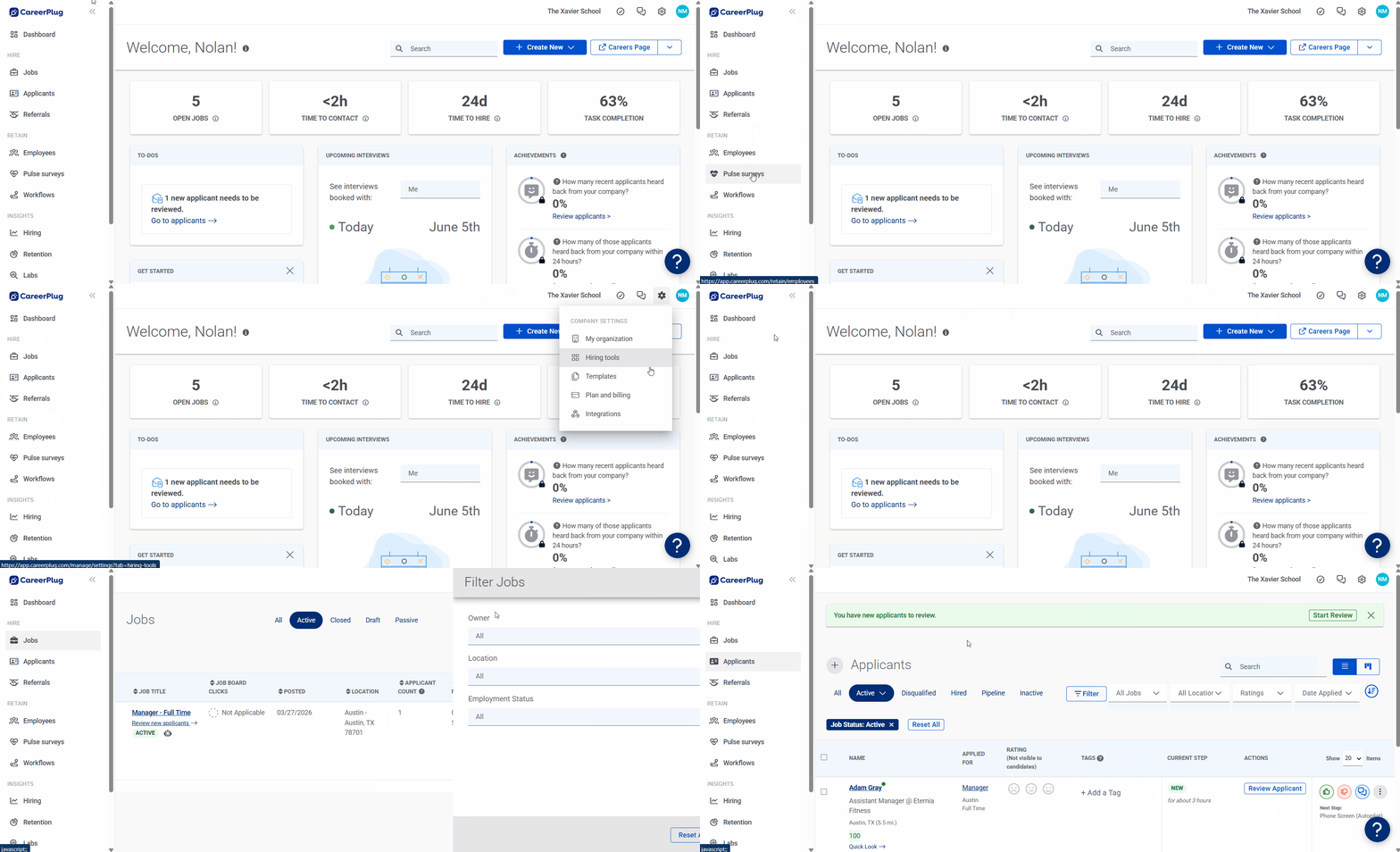
**Under Construction:** We have a lot of articles in our Help Center featuring CareerPlug's old look. Please be patient as we work on updating all of them!
### Where do I find my Jobs, Applicants, Team\*, and Insights?
**\*Some tabs and pages have new names.** For example, your **Team** tab and page are now called **Employees**. See below for more details on specific changes throughout CareerPlug.
When you sign in to CareerPlug, you'll find a new side navigation bar that highlights many of the features you're used to finding at the top of the screen — plus a couple more features we want to make it easier for you to access.
Your new side navigation bar is divided into three sections and designed to make it easier for you to **Hire** quality applicants, build and **Retain** a winning team, and gain **Insights** into your account's performance.
%20(NavEXP)%20(Left%20Nav%20highlight).png?width=670&height=281&name=Dashboard%20(6.5.26)%20(NavEXP)%20(Left%20Nav%20highlight).png)
You can collapse the side navigation bar at any time to give yourself more space on the page by clicking the **double-arrow icon** at the top of the bar.
%20(NavCOL)%20(Collapse%20Icon%20arrow).png?width=500&height=296&name=Dashboard%20(6.5.26)%20(NavCOL)%20(Collapse%20Icon%20arrow).png)
#### Hire
Your new side navigation bar includes three tabs dedicated to key hiring features: **Jobs**, **Applicants**, and**Referrals**. From these pages, you can post jobs, manage your applicants, and leverage your employees to share your open positions.
%20(NavEXP)%20(Left%20Nav%20crop)%20(Hire%20Tabs%20highlight).png?width=500&height=351&name=Dashboard%20(6.5.26)%20(NavEXP)%20(Left%20Nav%20crop)%20(Hire%20Tabs%20highlight).png)
- The **Jobs** page is where you manage all of your [job postings](https://support.careerplug.com/posting-a-job?hsLang=en).
- *Clicking the **Jobs** tab works the same as before: you'll be redirected to the Jobs page.*
- The **Applicants** page is where you [manage your pool of applicants](https://support.careerplug.com/managing-your-applicants?hsLang=en).
- *Clicking the **Applicants** tab works the same as before: you'll be redirected to the Applicants page.*
- The **Referrals** Settings page is where you [set up your referral reminder email](https://support.careerplug.com/using-an-employee-referral-program#email)and view applicants you've received via referral.
- *Clicking the **Referrals** tab works the same as the **Referrals** tab that previously lived on the **Team** page: you'll be redirected to the Referrals Settings page.*
#### Retain
Your new side navigation bar includes three tabs dedicated to key retention features: **Employees**, **Pulse survey**, and **Workflows**. From these pages, you can manage your employees, monitor their job satisfaction, and assign tasks to onboard, engage, and grow your team.
**Note:** You must have a CareerPlug [Grow](https://support.careerplug.com/benefits-of-a-careerplug-grow-subscription?hsLang=en) subscription to use [Pulse surveys](https://support.careerplug.com/engaging-your-team-with-careerplugs-employee-pulse-survey?hsLang=en) or [Workflows](https://support.careerplug.com/onboarding-and-employee-retention#create).
%20(NavEXP)%20(Left%20Nav%20crop)%20(Retain%20Tabs%20highlight).png?width=500&height=352&name=Dashboard%20(6.5.26)%20(NavEXP)%20(Left%20Nav%20crop)%20(Retain%20Tabs%20highlight).png)
- The **Employees** page — *formerly known as the **Team** page* — is where you manage employees' profile information, settings, and assigned tasks.
- *Clicking the **Employees** tab works the same as the previous **Team** tab: you'll be redirected to the (now called) **Employees** page.*
- The **Pulse** Overview page is where you [change Pulse settings and identify areas within your team that need attention to reduce turnover](https://support.careerplug.com/engaging-your-team-with-careerplugs-employee-pulse-survey?hsLang=en).
- *Clicking the **Pulse survey** tab works the same as the **Pulse** tab that previously lived on the (now called) **Employees** page: you'll be redirected to the Pulse Overview page.*
- The **Workflows** page is where you [create and manage Workflows](https://support.careerplug.com/onboarding-and-employee-retention#create), and view or copy Pre-loaded Workflows.
- *Clicking the **Workflows** tab works the same as the **Workflows** tab that previously lived on the (now called) **Employees** page: you'll be redirected to your Workflows page.*
#### Insights
Your new side navigation bar includes three Insights tabs dedicated to different types of reporting: **Hiring**, **Retain**, and **Labs**. Each Insights page features a dashboard with relevant data to help you understand your account's performance at a glance.
**Note:** You must have a CareerPlug [Grow](https://support.careerplug.com/benefits-of-a-careerplug-grow-subscription?hsLang=en) subscription to [use Retain Insights](https://support.careerplug.com/using-your-retain-insights-page?hsLang=en) or Labs Insights pages.
%20(NavEXP)%20(Left%20Nav%20crop)%20(Labs%20Tabs%20highlight).png?width=501&height=363&name=Dashboard%20(6.5.26)%20(NavEXP)%20(Left%20Nav%20crop)%20(Labs%20Tabs%20highlight).png)
- The **Hiring** Insights page is where you [see how well you're engaging with applicants, how fast you're hiring, which hiring steps you can improve, and more](https://support.careerplug.com/using-your-account-insights-page?hsLang=en).
- *Clicking the **Hiring** tab works the same as the previous **Insights** tab: you'll be redirected to the Hiring Insights page.*
- The **Retention** Insights page is where you [see how long employees stay with your company, how well they’re supported during onboarding, and more](https://support.careerplug.com/using-your-retain-insights-page?hsLang=en).
- *Clicking the **Retention** tab works the same as the **Retention** tab that previously lived on the **Insights** page: you'll be redirected to the Retention Insights page.*
- The **Labs** Insights page is where you get early access to experimental metrics related to hiring and retention, and influence how CareerPlug evolves.
- *Clicking the **Labs** tab works the same as the **Labs** tab that previously lived on the **Insights** page: you'll be redirected to the Labs Insights page.*
### Where do I find My tasks, Recent text messages, Company settings, and my Account menu?
While many of your hiring and retention tools have moved to the new side navigation bar, you'll find a group of personal and account-specific tools in the top-right corner of the page: **My tasks**, **Recent text messages**, **Company settings**, and **Account**. **My tasks** is the only new addition to this corner of CareerPlug.
**Note:** You must have a CareerPlug [Grow](https://support.careerplug.com/benefits-of-a-careerplug-grow-subscription?hsLang=en) subscription to use tasks.
%20(NavEXP)%20(Top%20Nav%20crop)%20(Top%20Nav%20highlight).png?width=503&height=226&name=Dashboard%20(6.5.26)%20(NavEXP)%20(Top%20Nav%20crop)%20(Top%20Nav%20highlight).png)
- The My Tasks page is where you manage all Workflow-related tasks that you or your employees are engaged with.
- *Clicking the **My tasks (checkmark) icon** redirects you to your My Tasks page.*
- The Recent Text Messages drawer is where you view recent texts between your team (including yourself) and your applicants.
- *Clicking the **Recent text messages (chat) icon** opens the drawer.*
- The Company Settings drop-down menu is where you access each individual settings page: **Hiring tools**, **Templates**, **My organization**, **Plan and billing**, **Integrations**.
- *Clicking the **Company settings (gear) icon** expands the drop-down, where you'll select the page where you want to be redirected.*
%20(NavEXP)%20(Settings%20drop-down)%20(Top%20Nav%20crop)%20(Settings%20drop-down%20highlight).png?width=500&height=282&name=Dashboard%20(6.5.26)%20(NavEXP)%20(Settings%20drop-down)%20(Top%20Nav%20crop)%20(Settings%20drop-down%20highlight).png)
- The **Account** drop-down menu is where you find your personal profile settings, submit feedback about Labs features, get support from CareerPlug's Help Center, and sign out of your account.
- *Clicking the **Account (circle with initials) icon** expands the drop-down, where you'll select the function you want to access: **My profile**, **Labs feedback**, **Help & support**, **Sign out**.*
- *Selecting **My profile** redirects your profile, where you can update contact information, security settings, and more.*
- - - *Selecting **Labs feedback** opens the Labs Feedback and Help Form drawer, where you can submit feedback on Labs features.*
- *Selecting **Help & support** opens the Help Center in a new window, where you can learn how to use specific features and find self-service solutions for your account issues.*
- *Selecting **Sign out** exits your account.*
- *If available, selecting **Switch account** lets you switch between multiple CareerPlug accounts. Only available if you've [activated multiple CareerPlug accounts](https://support.careerplug.com/activating-your-careerplug-account#activating-multiple).*
- *If available, selecting **Go to Classic Onboarding (read-only)** lets you access any employee data stored in [Classic Onboarding](https://support.careerplug.com/classic-onboarding-getting-started-guide-administrators?hsLang=en) in a view-only state.*
%20(NavEXP)%20(Account%20drop-down)%20(Account%20DD%20highlight).png?width=501&height=320&name=Dashboard%20(6.5.26)%20(NavEXP)%20(Account%20drop-down)%20(Account%20DD%20highlight).png)
### Changes to individual pages
Besides the navigation differences, you'll find a number of quality-of-life updates to your CareerPlug account. See below for more details on changes to specific pages.
#### Jobs page
##### Filters
Advanced filters have moved from an icon in the top-left corner of the **Jobs** page to a button near the **Search** field on the right.
Click the **Filter** button to pop out a new drawer from the right and apply any additional filters you'd like.

When applied to a page, filters now appear differently. Instead of the gray pill, you'll see a small, blue, rectangular tile with the filter's name just above your list of applicants.
%20(NavCOL)%20(Filter%20Applied)%20(Filter%20highlight).png?width=670&height=178&name=Jobs%20page%20(6.7.26)%20(NavCOL)%20(Filter%20Applied)%20(Filter%20highlight).png)
To remove a filter, click the **X icon** on the right edge of the rectangle. To remove all filters, click the **Reset All** button.
##### Job board visibility status indicator
The Jobs page now features a job board visibility status indicator. This indicator (in the Job Board Clicks column) shows whether your job's gotten any recent clicks.
If applicants have clicked on your job on [one of our partner job boards](https://support.careerplug.com/job-boards-where-careerplug-automatically-sends-your-jobs?hsLang=en) in the last seven days, you'll see a green **Clicks Recently** status. If no applicants have clicked on your job, you'll see a dark grey **No Clicks Recently** status (or an **In review** status if your job was posted recently).
%20(NavCOL)%20(Filter%20Applied)%20(Job%20Board%20Clicks%20highlight).png?width=503&height=312&name=Jobs%20page%20(6.7.26)%20(NavCOL)%20(Filter%20Applied)%20(Job%20Board%20Clicks%20highlight).png)
##### Close job icon
Previously, to close a job from your **Jobs** page, you clicked an **X icon** on the far right side of the page. Now, you'll click the **garbage can icon** in the same location.
%20(NavCOL)%20(Filter%20Applied)%20(trash%20can%20icon%20highlight).png?width=670&height=198&name=Jobs%20page%20(6.7.26)%20(NavCOL)%20(Filter%20Applied)%20(trash%20can%20icon%20highlight).png)
#### Applicants page
##### Filters
Advanced filters have moved from an icon in the top-left corner of the **Applicants** page to a button near the other drop-down filters at the top of the page.
Click the **Filter** button to pop out a new drawer from the right and apply any additional filters you'd like.

When applied to a page, filters now appear differently. Instead of the gray pill, you'll see a small, blue, rectangular tile with the filter's name just above your list of applicants.
%20(NavCOL)%20(Filter%20applied)%20(Filter%20highlight).png?width=670&height=175&name=Applicants%20page%20(6.5.26)%20(NavCOL)%20(Filter%20applied)%20(Filter%20highlight).png)
To remove a filter, click the **X icon** on the right edge of the rectangle. To remove all filters, click the **Reset All** button.
##### Board view
There's a new way to view and manage applicants as they move through your hiring process.
Toggle between the list view and board view using the **four horiztonal lines icon** and the **three vertical bars icon** in the top-right corner of the **Applicants** page.
%20(NavCOL)%20(board%20view)%20(toggle%20highlight).png?width=670&height=263&name=Applicants%20page%20(6.7.26)%20(NavCOL)%20(board%20view)%20(toggle%20highlight).png)
### Frequently Asked Questions (FAQ)
**Q: Can I switch between the new and old look of CareerPlug?**
**A:** No. As of July 16, 2026, the new look for CareerPlug is permanent.
**Q: Is the price for CareerPlug increasing?**
**A:** No. This change is a completely free upgrade for all CareerPlug users.
**Q: Do I need to take any actions in my CareerPlug account?**
**A:** No. Your account will be automatically upgraded to the new look.
**Q: Am I losing access to any features in my CareerPlug account?**
**A:** No. But the way you access certain features has changed. All of the changes are laid out in the article above.
- [Troubleshooting](https://support.careerplug.com/troubleshooting?hsLang=en#main-content)
- [Contacting Support](https://support.careerplug.com/troubleshooting?hsLang=en#contacting-support)
- [Top Support Issues](https://support.careerplug.com/troubleshooting?hsLang=en#top-support-issues)
- [Video Library](https://support.careerplug.com/troubleshooting?hsLang=en#video-library)
- [Account](https://support.careerplug.com/account?hsLang=en#main-content)
- [Billing](https://support.careerplug.com/account?hsLang=en#billing)
- [Account Management](https://support.careerplug.com/account?hsLang=en#account-management)
- [Account Configuration](https://support.careerplug.com/account?hsLang=en#account-configuration)
- [Notifications](https://support.careerplug.com/account?hsLang=en#notifications)
- [Getting Started](https://support.careerplug.com/account?hsLang=en#getting-started)
- [What's New?](https://support.careerplug.com/whats-new?hsLang=en#main-content)
- [Monthly Updates](https://support.careerplug.com/whats-new?hsLang=en#monthly-updates)
- [Announcements](https://support.careerplug.com/whats-new?hsLang=en#announcements)
- [Attract: Job Postings](https://support.careerplug.com/attract-job-postings?hsLang=en#main-content)
- [Hiring Process](https://support.careerplug.com/attract-job-postings?hsLang=en#hiring-process)
- [New Job Postings](https://support.careerplug.com/attract-job-postings?hsLang=en#new-job-postings)
- [Existing Job Postings](https://support.careerplug.com/attract-job-postings?hsLang=en#existing-job-postings)
- [Attract: Targeted Recruiting](https://support.careerplug.com/attract-targeted-recruiting?hsLang=en#main-content)
- [Careers Page](https://support.careerplug.com/attract-targeted-recruiting?hsLang=en#careers-page)
- [Job Boards](https://support.careerplug.com/attract-targeted-recruiting?hsLang=en#job-boards)
- [Additional Sources](https://support.careerplug.com/attract-targeted-recruiting?hsLang=en#additional-sources)
- [Evaluate: Communication](https://support.careerplug.com/evaluate-communication?hsLang=en#main-content)
- [Applicant Management](https://support.careerplug.com/evaluate-communication?hsLang=en#applicant-management)
- [Applicant Tracking](https://support.careerplug.com/evaluate-communication?hsLang=en#applicant-tracking)
- [Messages](https://support.careerplug.com/evaluate-communication?hsLang=en#messages)
- [Contacting Applicants](https://support.careerplug.com/evaluate-communication?hsLang=en#contacting-applicants)
- [Evaluate: Interviews](https://support.careerplug.com/evaluate-interviews?hsLang=en#main-content)
- [Pre-Interview](https://support.careerplug.com/evaluate-interviews?hsLang=en#pre-interview)
- [Post-Interview](https://support.careerplug.com/evaluate-interviews?hsLang=en#post-interview)
- [Assessments](https://support.careerplug.com/evaluate-interviews?hsLang=en#assessments)
- [Onboard: New Hires](https://support.careerplug.com/onboard-new-hires?hsLang=en#main-content)
- [Making Your Hire](https://support.careerplug.com/onboard-new-hires?hsLang=en#making-your-hire)
- [New Hire Assignments](https://support.careerplug.com/onboard-new-hires?hsLang=en#new-hire-assignments)
- [Employee Access](https://support.careerplug.com/onboard-new-hires?hsLang=en#employee-access)
- [Onboard: Management](https://support.careerplug.com/onboard-management?hsLang=en#main-content)
- [Onboarding Configuration (Classic)](https://support.careerplug.com/onboard-management?hsLang=en#onboarding-configuration-classic)
- [Checklists (Classic)](https://support.careerplug.com/onboard-management?hsLang=en#checklists-classic)
- [Completed Onboarding](https://support.careerplug.com/onboard-management?hsLang=en#completed-onboarding)
- [Engage: Existing Employees](https://support.careerplug.com/engage-existing-employees?hsLang=en#main-content)
- [Integrations](https://support.careerplug.com/engage-existing-employees?hsLang=en#integrations)
- [Employer Forms](https://support.careerplug.com/engage-existing-employees?hsLang=en#employer-forms)
- [Employee Retention](https://support.careerplug.com/engage-existing-employees?hsLang=en#employee-retention)
- [Engage: Reporting](https://support.careerplug.com/engage-reporting?hsLang=en#main-content)
- [Charts](https://support.careerplug.com/engage-reporting?hsLang=en#charts)
- [Reporting](https://support.careerplug.com/engage-reporting?hsLang=en#reporting)
- [Compliance](https://support.careerplug.com/engage-reporting?hsLang=en#compliance)
- [Marketplace](https://support.careerplug.com/marketplace?hsLang=en)
[](https://support.careerplug.com?hsLang=en)
Handcrafted in Austin, Texas
© 2026 CareerPlug. All rights reserved.