![CareerPlug-Logo-2025.png]](https://support.careerplug.com/hs-fs/hubfs/CareerPlug-Logo-2025.png?width=230&height=40&name=CareerPlug-Logo-2025.png)
As of December 1st, 2026, Indeed will require all employers to have a verified Indeed account for their jobs to receive organic visibility. Jobs that aren't connected to a verified Indeed Employer account will only have visibility on Indeed if they are sponsored. The purpose is to mitigate fraud risk and protect jobseekers from scam jobs.
ATS Partners were made aware of this abrupt policy change on Tuesday, November 24th, with one week's notice.
In order for your jobs to continue appearing in Indeed's organic search results, you need to connect your CareerPlug account to a verified Indeed Employer account. If you do not have an Indeed Employer account, you need to create one.
This setup process only needs to be completed once per employer, not per job.
What do I need to do?
Your next steps will depend on whether or not you already have an Indeed Employer account.
For any other questions or concerns — including questions about billing — see our Frequently Asked Questions (FAQ) below.
If you have an Indeed Employer account
If you already have an established Indeed Employer account, you just need to connect it to your CareerPlug account ASAP.
1. Navigate to your Jobs page.
2. Click the (Indeed) Start Sponsoring link under the title of any active job. Don't worry — you don't actually have to follow through with a monetized campaign to authorize your accounts.
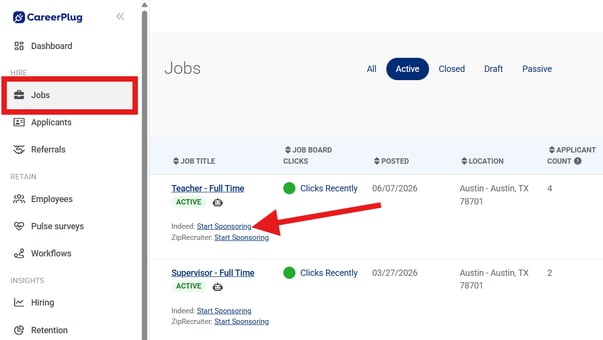
If you don't have any active jobs, you'll need to post a job first.
3. On the job sponsor page, enter your Indeed Account Email (i.e., the one associated with your Indeed Employer account).
4. Click the Start Setup button in the bottom-right corner.

5. Proceed through the sponsorship authorization process to connect your Indeed Employer account to your CareerPlug account.

If your Indeed account doesn't have valid billing details on file, Indeed will request this information. Billing details help Indeed verify that an employer is legitimate. Your payment method will only be charged if you start sponsoring a job, which would require you to take additional steps.
6. Once you've finished connecting your accounts, you'll be redirected back to CareerPlug. You'll then have the option to sponsor the job or leave the page, but you do not need to sponsor a job to verify your account or maintain organic visibility.
Your Indeed Employer account is now connected to CareerPlug and Indeed will recognize your jobs as verified and legitimate! There is no further action you need to take to be considered an eligible employer for organic visibility.
If you don't have an Indeed Employer account
If you don't have an Indeed Employer account, you'll need to create one and connect it to your CareerPlug account ASAP.
1. Navigate to your Jobs page.
2. Click the (Indeed) Start Sponsoring link under the title of any active job. Don't worry — you don't actually have to follow through with a monetized campaign to authorize your accounts.
If you don't have any active jobs, you'll need to post a job first.
3. On the job sponsor page, click the Create an Account link near the bottom.

4. In the new browser tab, proceed through the account creation process.
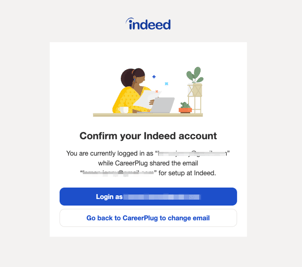

Indeed prefers you use an employer email domain (instead of GMail, Hotmail, Yahoo, etc.) when possible. This helps Indeed verify that you're a legitimate employer. Their Trust & Safety department has technology to cross reference business information and verify within 24 hours.
5. After creating your account, return to CareerPlug and enter your new Indeed Account Email (i.e., the one associated with your Indeed Employer account) on the job sponsor page.
6. Click the Start Setup button in the bottom-right corner.
7. Proceed through the sponsorship authorization process to connect your Indeed Employer account to your CareerPlug account.
If your Indeed account doesn't have valid billing details on file, Indeed will request this information. Billing details help Indeed verify that an employer is legitimate. Your payment method will only be charged if you start sponsoring a job, which would require you to take additional steps.
8. Once you've finished connecting your accounts, you'll be redirected back to CareerPlug. You'll then have the option to sponsor the job or leave the page, but you do not need to sponsor a job to verify your account or maintain organic visibility.
Your Indeed Employer account is now connected to CareerPlug and Indeed will recognize your jobs as verified and legitimate! There is no further action you need to take to be considered an eligible employer for organic visibility.
Frequently Asked Questions (FAQ)
Q: Will connecting my CareerPlug and Indeed account result in additional charges?
A: No, you not will incur any additional charges from either entity just by connecting your two accounts. Indeed is asking employers to complete this connection and workflow to verify legitimate employers and protect jobseekers from rampant patterns of scam jobs. You do not have to sponsor a job and they will not charge you unless or until you begin a true sponsorship campaign on a specific job beyond the authorization workflow.
Q: Why does an Indeed Employer account ask for billing details if I don't plan to sponsor a job?
A: Part of creating an Indeed Employer account is to enter your billing as part of their verification process (which helps them validate your employer entity against more datapoints). You will not be charged until or unless you create a sponsorship campaign for a specific job, separate from connecting your Indeed/CareerPlug accounts.
Q: How can I confirm that I have successfully completed the steps needed to protect my eligibility for organic job visibility?
A: After you've followed the steps above, you can confirm the accounts are connected by opening a job's sponsorship window and verifiying the second milestone in the checklist is complete with a green checkmark. There is no need to proceed with sponsorship if you do not want to. You can click the "back" link at the top left of that window and proceed in your account as normal from here. This was a one-time connection step that is now complete.
