![CareerPlug-Logo-2025.png]](https://support.careerplug.com/hs-fs/hubfs/CareerPlug-Logo-2025.png?width=230&height=40&name=CareerPlug-Logo-2025.png)
In order to use Autopilot — CareerPlug's automated scheduling feature — you need to set up your built-in calendar or connect an external calendar account to CareerPlug.
Microsoft is ending support for Exchange Web Services (EWS) on October 1, 2026 and sunsetting functionality in April 2027. Because CareerPlug uses EWS to connect your Microsoft Exchange calendar with Cronofy, you'll need to reconnect your calendar to Microsoft Graph to avoid disruption.
Some organizations require an IT administrator to approve calendar integrations. If you receive a "Need admin approval" message, please forward it to your IT team for approval.
To disconnect and reconnect your calendar:
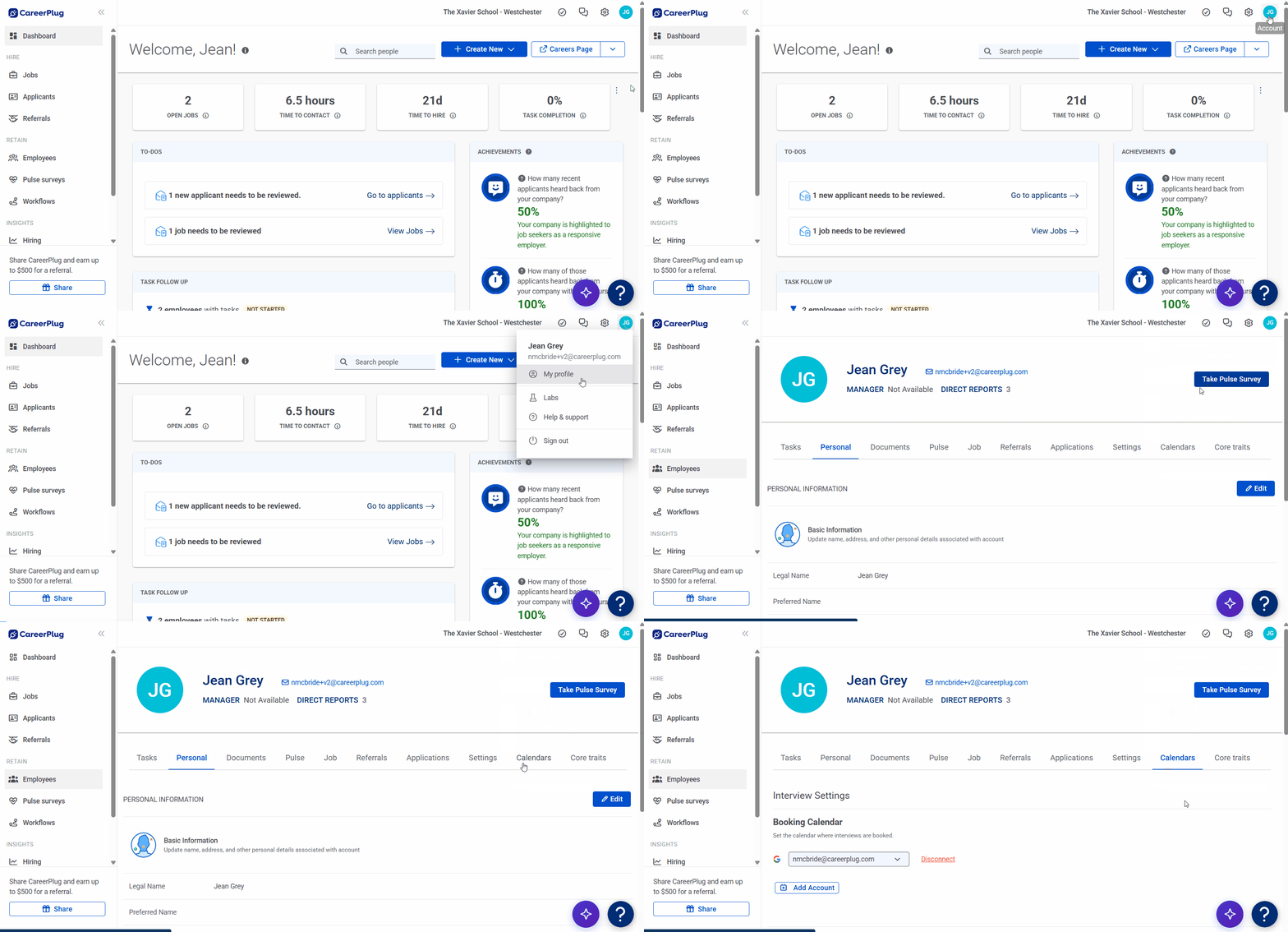
1. Navigate to Account (circle with initials) > My profile > Calendars.
2. Scroll down and click the Edit accounts link.
%20(Calendar%20connected)%20(Old%20UI)%20(9.10.26)%20(Edit%20accts%20arrow%20-%20fixed).png?width=670&height=199&name=My%20Profile%2c%20Calendars%20(Nav%20Bar%20Minimized)%20(Calendar%20connected)%20(Old%20UI)%20(9.10.26)%20(Edit%20accts%20arrow%20-%20fixed).png)
3. Click the X icon next to your Exchange calendar account to disconnect it.
%20(Edit%20accounts)%20(Old%20UI)%20(9.10.26)%20(X%20arrow).png?width=670&height=219&name=My%20Profile%2c%20Calendars%20(Nav%20Bar%20Minimized)%20(Edit%20accounts)%20(Old%20UI)%20(9.10.26)%20(X%20arrow).png)
4. Click the Exchange button.
%20(No%20calendar%20connected)%20(Old%20UI)%20(9.10.26)%20(calendars%20highlight).png?width=670&height=203&name=My%20Profile%2c%20Calendars%20(Nav%20Bar%20Minimized)%20(No%20calendar%20connected)%20(Old%20UI)%20(9.10.26)%20(calendars%20highlight).png)
5. On the following page, click the checkbox to agree to the terms of service and allow CareerPlug to access your calendar account.
6. Click the Link Exchange Account button.
%20(highlights).png?width=550&height=444&name=Link%20Exchange%20Account%20page%20(9.11.26)%20(highlights).png)
Note: If you've connected more than one Exchange account before, you'll need to choose which account you want to reconnect.
%20(unmarked).png?width=350&height=272&name=Microsoft%20-%20Pick%20an%20account%20pop-up%20(9.18.26)%20(unmarked).png)
7. On the following page, click the Continue button.
%20(9.18.26)%20(arrow).png?width=551&height=269&name=Youre%20signing%20back%20into%20Cronofy%20page%20(Exchange)%20(9.18.26)%20(arrow).png)
8. On the following page, click the Continue button.
%20(9.18.26)%20(arrow).png?width=549&height=371&name=Cronofy%20wants%20access%20page%20(Exchange)%20(9.18.26)%20(arrow).png)
You’ll be redirected back to the Calendars tab in My profile. You may temporarily see a "Pending" status. After a couple of minutes, it will update to "Active."
Once your Google calendar has been reconnected, you can resume auto-scheduling interviews with Autopilot!