![CareerPlug-Logo-2025.png]](https://support.careerplug.com/hs-fs/hubfs/CareerPlug-Logo-2025.png?width=230&height=40&name=CareerPlug-Logo-2025.png)
Your social networks can be a great source for attracting qualified applicants.
Social media continues to be a great avenue (along with in-person) to recognize staff for performance and impact. This same local content is also a great opportunity to promote your school culture and current/future openings.
In this article:
- What are the benefits of sharing jobs on social media?
- How do I share jobs on integrated social media platforms?
- How do I share jobs on social media platforms that aren't integrated with CareerPlug?
- What are the best practices for sharing jobs on social media?
- How do I track the number of applicants who apply from social media sources?
- How do I see which source an applicant came from?
- How do I filter applicants who found my job through the same source?
What are the benefits of sharing jobs on social media?
Social media is also a massive platform. Literally billions of people use various social media platforms every day, for many different purposes. While it’s unlikely a single post you make will reach a billion people, it does open you to a much larger pool of potential applicants.
Using social media to advertise your hiring is also a great way to capture the attention of a passive job seeker, or someone who isn’t actively looking for a new role but could be interested in your position. Often, social media is the only way to reach passive job seekers, as they do not actively use job boards. Your next best hire might not know they are even interested until you put it right in front of them.
How do I share jobs on integrated social media platforms?
CareerPlug Limited and State Farm Intern accounts cannot share jobs on social media directly from CareerPlug. We recommend sharing a link to your careers page instead.
You can share job posts to X, LinkedIn, and Facebook directly from your CareerPlug account.
To share your jobs on social media platforms that aren't integrated with CareerPlug, you'll need to create a custom source and share your job using a custom source tracking link. See below for more guidance.
1. Navigate to your Jobs page.
2. Click the three-dots icon to the right of whichever job you want to share and select Share from the drop-down menu.
%20(More%20drop-down)%20(Share%20highlights).png?width=670&height=270&name=Jobs%20page%20(12.17.25)%20(More%20drop-down)%20(Share%20highlights).png)
3. In the Share Job pop-up window, click the icon for the platform where you'd like to share your job: X, LinkedIn, or Facebook.
%20(Social%20Media%20highlight).png?width=670&height=374&name=Share%20Job%20Modal%20(12.17.25)%20(Social%20Media%20highlight).png)
4. Sign in to your chosen platform via the pop-up window.
5. Enter a compelling message to include with your job posting.
6. Set who can see your post to ensure you reach the right audience.
- X: You can't control your audience on X. However, you can control who can reply to your post by clicking Everyone can reply (globe icon) and selecting a different option.
- LinkedIn: Click the profile icon drop-down in the top left corner of the post to access Post settings.
- Facebook: Click the button under your name to access the Post audience. The button will display your default audience (e.g. Friends, Public, or Custom).
7. Click the Post or Share button (depending on the platform).
When you share a job on an integrated social media platform, CareerPlug automatically creates a custom link to track applicants from that source.
CareerPlug Limited and State Farm Intern accounts cannot share jobs on social media directly from CareerPlug. We recommend sharing the link to your careers page instead.
How do I share jobs on social media platforms that aren't integrated with CareerPlug?
You always have the option to quickly share the link to a job post on social media.
However, if you want to hire more effectively and track which sources are producing the most applicants and best hires, we recommend that you create a custom source for any social media platforms where you regularly share your job posts, share your custom source tracking link, and create a post on the social media platform where you want to share your job.
- How do I create a custom source in CareerPlug?
- How do I share the custom source tracking link for a job?
- How do I create a post on social media to share my job?
How do I create a custom source in CareerPlug?
1. Navigate to Settings > Hiring Tools > Custom Sources.
%20(4.29.26)%20(Custom%20Sources%20arrow%20+%20nav%20highlights).png?width=670&height=265&name=Settings%20-%20Hiring%20Tools%20(Assessments)%20(4.29.26)%20(Custom%20Sources%20arrow%20+%20nav%20highlights).png)
2. Click the plus (+) icon in the top-left corner of the page.
3. Enter the title of the source (for example: "University of Texas Job Board," "Austin, TX Jobs Facebook Group," etc).
If you want your custom source to link to your careers page instead of individual job postings, turn on the This is a Careers Page source toggle.
4. Click the Save button at the bottom of the drawer.
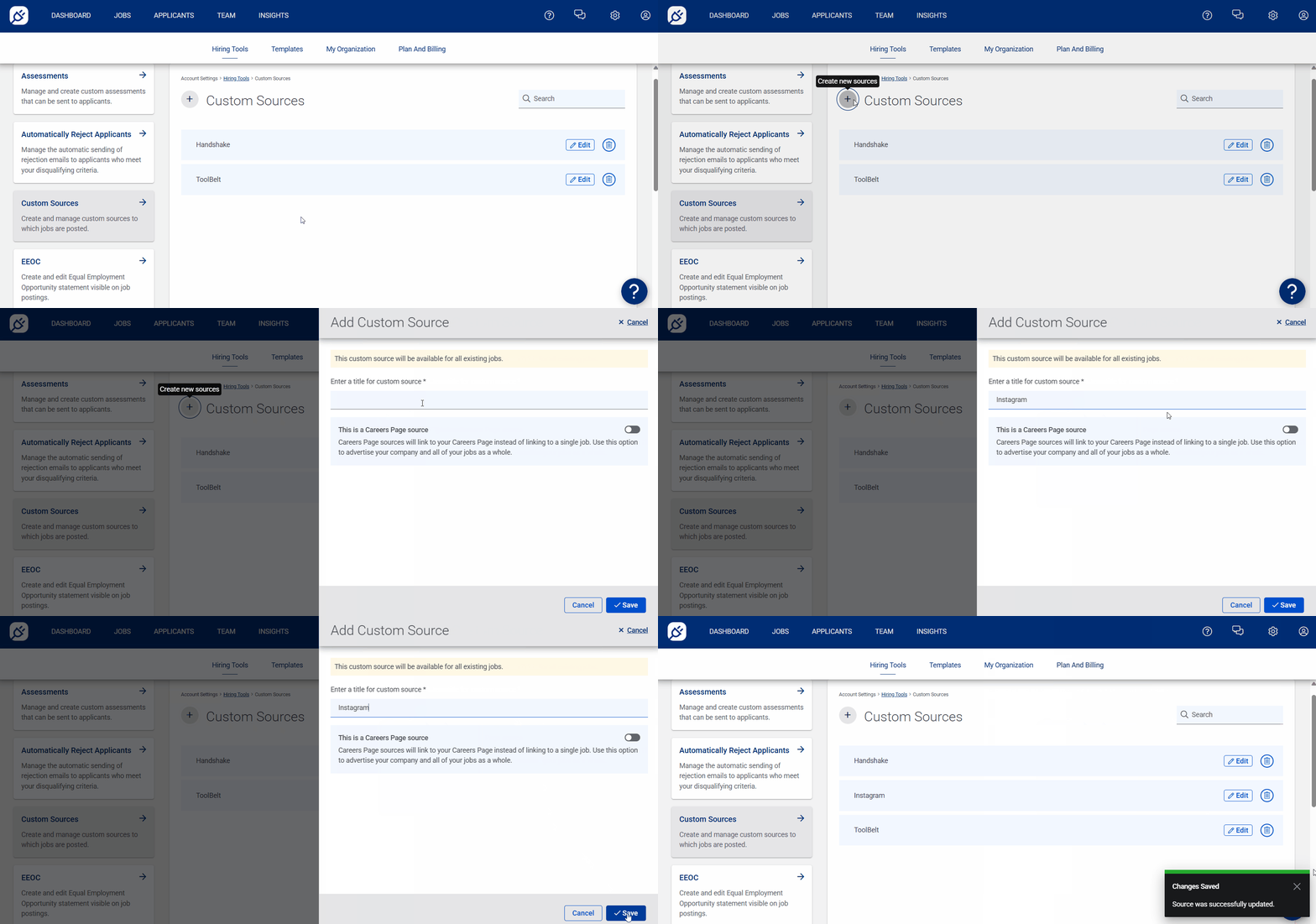
Now you're ready to share your jobs using your new custom source! This source will be available for all existing jobs.
How do I share the custom source tracking link for a job?
1. Navigate to your Jobs page.
2. Click the three-dots icon to the right of whichever job you want to share and select Share from the drop-down menu.
%20(three%20dots%20drop%20down)%20(Share+Jobs%20highlight).png?width=670&height=281&name=Jobs%20page%20(4.29.26)%20(three%20dots%20drop%20down)%20(Share+Jobs%20highlight).png)
3. In the Share Job pop-up window, scroll down and click the Track Custom Sources tile.
%20(4.16.26)%20(Custom%20Sources%20arrow).png?width=670&height=338&name=Share%20Job%20Modal%20(bottom%20-%20larger%20view)%20(4.16.26)%20(Custom%20Sources%20arrow).png)
4. In the Custom Sources drawer, click the Copy button to the right of the custom source where you want to share your job, then select Copy link from the drop-down menu.
%20(Copy%20link%20highlights).png?width=451&height=396&name=Custom%20Sources%20drawer%20(custom%20source%20drop%20down)%20(Copy%20link%20highlights).png)
Now you're ready to sign in to the social media platform where you want to share your job and create a post to promote your open role.
How do I create a post on social media to share my job?
When you're ready to share your job via a custom source tracking link, use the following resources to learn about making posts on particular social media platforms and non-traditional job boards.
- Instagram (Post)
- Instagram (Story)
- Instagram (Reel)
- TikTok
- Bluesky
- NextDoor (Standard Post)
- NextDoor (Business Post)
- Handshake
- Craigslist
Note: CareerPlug cannot provide assistance for issues related to any social media platforms. For help troubleshooting, please contact the particular platform's support team.
What are the best practices for sharing jobs on social media?
Each social media platform has its own set of rules for posting behavior. Use the following tips to ensure you're following each platform's guidelines.
All social media platforms
You can use these tips for sharing your jobs across all social media platforms.
| Best practice or recommendation | Why does it matter and how do I do it? |
| Always post using a business or professional account |
|
| Use your own branding in social media posts |
|
| Proofread your post and use a writing tool to check it for errors before posting |
|
| Keep up with comments on your social media posts |
|
| Engage with your company's social media posts |
|
| Ask employees to engage and share with your company's social media posts |
|
| Include a CareerPlug tracking link with every job post you share on social media |
|
| Don’t just post jobs on social media, build your brand |
|
X
X caters to a wide variety of users, attracting over 100 million daily users. Posts on X are short, to the point, and don’t have a lot of extra fluff. If you already have an established profile and following, share jobs on X to generate interest.
| Best practice or recommendation | Why does it matter and how do I do it? |
| Share jobs directly to X from CareerPlug |
|
| Create posts from your professional X account that are short and to the point |
|
| Use hashtags appropriately |
|
| Pin the post advertising your open job to the top of your feed |
|
| Explore X’s Job Search tool |
|
Even though LinkedIn is one of the job boards where CareerPlug automatically sends your jobs, it's still a good idea to share your job posts and careers page on your LinkedIn company feed. This can get more eyes from your network on the job onto the listing and potentially engage passive job seekers who use LinkedIn regularly for networking.
| Best practice or recommendation | Why does it matter and how do I do it? |
| Share jobs directly to LinkedIn from CareerPlug |
|
| Create posts using your LinkedIn company account that have a professional tone |
|
| Use hashtags appropriately |
|
REVISED:
[ORIGINAL: Over 3 billion people use Facebook regularly. While this platform may not be the traditional way to find new talent, it can be a great way to identify real applicants in your community. This is an especially great way to reach passive job seekers, or people who aren’t actively looking for a job but could be interested in a new opportunity.
With most social media, Facebook is a visual-first platform. Eye-catching graphics that match your branding are essential for getting users to stop scrolling and engage. If you don’t have existing hiring materials, there are many free tools, such as Canva, a free browser-based design platform with hundreds of templates you can customize. The recommended ratio for a Facebook image post is either 1:1 (1080x1080 pixels) or 4:5 (1440x1800 pixels).]
| Best practice or recommendation | Why does it matter and how do I do it? |
| Share jobs directly to Facebook from CareerPlug |
|
| Create posts on your Facebook business Page that are short and catchy |
|
| Include a link to your CareerPlug job post (or your careers page URL) in your Facebook posts |
|
| Boost a post on your Facebook business Page |
|
| Link your Facebook business Page to your careers page |
|
| Use Facebook Groups to connect with job seekers in your community |
|
REVISED:
[ORIGINAL: Instagram is a video and photo-sharing platform with approximately 3 billion users globally. While it’s unlikely that your posts will impact all 3 billion users, Instagram can be a great way to connect with people already invested in your brand, advertise open positions, and find great applicants.
For many industries, Instagram can be the best way to drive organic applicants who are already bought into your brand and culture to your job postings.
Remember that Instagram is a visual-first platform. Eye-catching graphics that match your branding are essential for getting users to stop scrolling and engage. If you don’t have existing hiring materials, there are many free tools, such as Canva, a free browser-based design platform with hundreds of templates you can customize. The recommended ratio for a photo being posted to both the main Instagram feed and Instagram Stories is 1x1 (1080x1080).]
| Best practice or recommendation | Why does it matter and how do I do it? |
| Add your careers page URL to your Instagram bio |
|
| Create a custom source for Instagram to track incoming applicants |
|
| Create Posts, Stories, and Reels on your Instagram business account that are casual and authentic |
|
| Don’t include links in Instagram posts, but direct viewers to your bio |
|
| Use hashtags appropriately |
|
| Pin a Post or Reel to the top of your Instagram profile |
|
| Pin a Story to your Story Highlights |
|
TikTok
Like Instagram, TikTok is a visual-first platform. Your posts need to be eye-catching to stop someone from scrolling past them. Attention spans are short, so keep your posts bright, short, and punchy.
| Best practice or recommendation | Why does it matter and how do I do it? |
| Add your careers page URL to your TikTok bio |
|
| Create a custom source for TikTok to track incoming applicants |
|
| Create posts on your TikTok business Page that are authentic and tap into popular trends |
|
| Don’t include links in TikTok posts, but direct viewers to your bio |
|
| Use hashtags appropriately |
|
Bluesky
REVISED:
- In fact, Bluesky tends to offer far higher organic reach per follower compared with similar platforms like X.
[ORIGINAL: Bluesky is the newest social media platform on the market. It was launched in 2023 as invite-only, and opened to the public at the beginning of 2024. It functions much like X does, because it originally started as a research initiative of Twitter. Bluesky has between 1-3 million active monthly users, with over 40 million accounts. It’s a smaller community compared to other social media platforms, but if you have an established account it is absolutely worth sharing your jobs to.]
| Best practice or recommendation | Why does it matter and how do I do it? |
| Add your careers page URL to your Bluesky bio |
|
| Create posts from your professional Bluesky account that are short and to the point |
|
| Include a link to your CareerPlug job post (or your careers page URL) in your Bluesky posts |
|
| Use hashtags appropriately |
|
| Create a custom source for Bluesky to track incoming applicants |
|
| Use Feeds to connect with job seekers in your industry |
|
Nextdoor
REVISED:
[ORIGINAL: Nextdoor is a non-traditional social media platform that works as a neighborhood network, connecting people to their neighbors and community. Approximately 105 million users across 350,000 Posts are often only suggested to specific areas, which can help when targeting a specific area or community. Using Nextdoor can also help you see what others in your community think about your business, create great brand awareness, and stay up to date on what is happening around your business.
Hiring managers find the most luck on Nextdoor in hyperlocal, hourly, or contractor-based industries with flexible hours, such as cleaning, home improvement, and home care. It can be a great resource for any local or community-based business.
Nextdoor is a text-first platform, which means that you can add photographs to a post, but you don’t have to. The way you present your company and the job itself is the most important part, not a flashy graphic.]
| Best practice or recommendation | Why does it matter and how do I do it? |
| Create a custom source for Nextdoor to track incoming applicants |
|
| Create a free Nextdoor business page |
|
| Create posts on your Nextdoor business account that are casual and informative |
|
| Include a link to your CareerPlug job post (or your careers page URL) in your Nextdoor posts |
|
How do I track the number of applicants who apply from social media sources?
To see which social media sources produce the most applicants for your jobs, you can look at three different places in CareerPlug:
- The Source Analysis charts on your Hiring Insights page
- The Source Analysis charts in Classic Reports
- The Source Conversion Performance chart on a job profile page
The Source Analysis charts on your Hiring Insights page
The Source Analysis charts show a breakdown of which sources your applicants are coming from, split across two groups: All Applicants and Hired Applicants. The Source Analysis chart can help you learn where you're finding quality applicants.
1. Navigate to Insights.
2. Scroll down to view the Source Analysis charts.
.png?width=670&height=215&name=Insights%20%5BSource%20analysis%20chart%5D%20(4.30.26).png)
The Source Analysis charts in Classic Reports
The Source Analysis charts in Classic Reports show the same data as the Source Analysis charts in your Hiring Insights.
1. Navigate to Insights.
2. Click the View Classic Reports button in the top-right corner of the page.
.png?width=670&height=124&name=Insights%20%5BClassic%20reports%20button%5D%20(4-30-26).png)
3. Click the Source Analysis tab to view the Source Analysis charts.
%20(SA%20tab%20highlight).png?width=670&height=529&name=Classic%20Reports%20-%20Source%20Analysis%20(4.30.26)%20(SA%20tab%20highlight).png)
The Source Conversion Performance chart on a job profile page
The Source Conversion Performance chart shows the number of applicants and job posting clicks per source, allowing you to see which of your sources are producing high numbers of clicks and/or applicants.
1. Navigate to your Jobs page.
2. Click the title of a job on your Jobs page.
3. Scroll down to view the Source Conversion Performance chart.
.png?width=670&height=371&name=Jobs%20%5BSpecific%20job%2c%20Source%20Conversion%20chart%5D%20(4.30.26).png)
How do I see which source an applicant came from?
1. Navigate to your Applicants page.
2. Click an applicant's name to open their profile.
%20(Jobs+Name%20highlights).png?width=670&height=260&name=Applicants%20page%20(4.29.26)%20(Jobs+Name%20highlights).png)
You'll find an applicant's source listed near the top of their profile page.
%20(4.29.26)%20(custom%20source%20highlight)%20(cropped).png?width=670&height=217&name=Applicant%20Profile%20(top)%20(4.29.26)%20(custom%20source%20highlight)%20(cropped).png)
Not every custom source has an obvious name. Here's how you can tell which source an applicant came from:
How do I filter applicants who found my job through the same source?
To filter applicants by their source, you need to use the traditional applicant view. You can toggle between this view and the applicant board view using the toggle in the top-right corner of the Applicants page.
%20(board%20view%20icons)%20(highlights)%20(cropped).png)
You can apply filters on your Applicants page to view applicants from only a specific source (or specific sources).
1. Click the Show Filters icon in the top-left corner of the page to open the Filters drawer.
2. Scroll down the Filters drawer, click the Source drop-down menu, and select the source(s) from which you want to see applicants. You can select as many sources as you want.

To remove any of filters, click the X icon on the right edge of the bubble. To clear all filters at once, click the Reset All link at the top of the Filters drawer.