---
title: Job templates
description: Learn how to use job templates to post jobs to job boards with just a few clicks.
---
[Skip to content](https://support.careerplug.com/job-templates#main-content)
[Submit a Request](https://support.careerplug.com/kb-tickets/new?hsLang=en)
[![CareerPlug-Logo-2025.png\]](https://support.careerplug.com/hs-fs/hubfs/CareerPlug-Logo-2025.png?width=230&height=40&name=CareerPlug-Logo-2025.png)](https://support.careerplug.com?hsLang=en)
Open main navigation
Close main navigation
- [Submit a Request](https://support.careerplug.com/kb-tickets/new)
- [Get help now!](https://support.careerplug.com/help)
[Get help now!](https://support.careerplug.com/help?hsLang=en)
How can we help?
- There are no suggestions because the search field is empty.
1. [Help Center](https://support.careerplug.com/?hsLang=en)
2. [Attract: Job Postings](https://support.careerplug.com/attract-job-postings?hsLang=en)
3. [New Job Postings](https://support.careerplug.com/attract-job-postings?hsLang=en#new-job-postings)
# Job templates
Job templates are saved job postings that you can post to [our partner job boards](https://support.careerplug.com/job-boards-where-careerplug-automatically-sends-your-jobs?hsLang=en) with just a few clicks. Adding job templates to your account makes it quick and easy to post new jobs to fill positions for which you frequently hire. Posting a job from a template will pre-fill your preferences (like prescreen questions) and job description.
##### In this article:
- [Creating a job template](https://support.careerplug.com/job-templates#create)
- [Internal name vs. Posting title](https://support.careerplug.com/job-templates#title)
- [Posting a job using a job template](https://support.careerplug.com/job-templates#post)
- [Making an express post](https://support.careerplug.com/job-templates#express)
- [Editing multiple jobs posted from a template](https://support.careerplug.com/job-templates#multiplejobs)
- [Job template page settings](https://support.careerplug.com/job-templates#settings)
### Creating a job template
The fastest and easiest way to create a job template is when you're posting a new job. When you post a new job, you'll have the option to **Create Job Template** when you select the posting status.
Turning this toggle on will save all of your job posting preferences — like the job description, desired experience, salary, and prescreen questions — in a template that you can quickly re-post in the future when you're hiring for this position again.
%20(Create%20Job%20Template%20toggle%20on)%20(arrow).png?width=451&height=312&name=Select%20Posting%20Status%20pop-up%20(12.18.25)%20(Create%20Job%20Template%20toggle%20on)%20(arrow).png)
##### To create a new job template from scratch:
1\. Navigate to **Settings (gear icon)\> Templates \> Job Templates**.
%20(7.16.26).png?width=670&height=290&name=Settings%2c%20Templates%2c%20Job%20Templates%2c%20Navigation%20shown%20(Nav%20bar%20minimized)%20(7.16.26).png)
2\. Click the **plus (+) icon** in the upper-left corner of the Job Templates page and select **Create Blank Template** from the drop-down menu.
.gif?width=670&height=288&name=Settings%2c%20Templates%2c%20Job%20Templates%2c%20New%20(Gif).gif)
If you have existing job templates in your account, you'll also have the option to **Clone Existing Template**. Cloning an existing template is the best option if you already have a similar template saved and only need to make minor adjustments.
3\. Enter an **Internal name** for the template. This is only for internal use and is not visible to applicants.
4\. Enter a **Posting title**. This is the job title that will be visible to applicants for jobs posted from this template.
5\. Enter a job **Description**. Use the editing toolbar to format your job description.
%20(IntName+PostTitle+Desc)%20(Req%20field%20highlights).png?width=670&height=384&name=Create%20Job%20Template%20(1.7.26)%20(IntName+PostTitle+Desc)%20(Req%20field%20highlights).png)
[A Requisition ID is an internal job code that you can use for reporting purposes](https://support.careerplug.com/using-requisition-id-to-improve-internal-tracking-reporting?hsLang=en). It is not visible to applicants.
If you want a job template to be available for admin users only, turn on the **Can only be posted by admin users** toggle.
%20(IntName+PostTitle+Desc)%20(ReqID+Admin%20toggle%20highlights).png?width=670&height=160&name=Create%20Job%20Template%20(1.7.26)%20(IntName+PostTitle+Desc)%20(ReqID+Admin%20toggle%20highlights).png)
6\. Click to select any benefits that jobs posted using this template will offer from the listed options.
%20(Benefits)%20(highlight).png?width=670&height=346&name=Create%20Job%20Template%20(1.7.26)%20(Benefits)%20(highlight).png)
To remove a benefit, click the highlighted benefit again.
To avoid duplication, ensure your job description doesn't already include a "Benefits" section.
##### Adding custom benefits
If you want to advertise additional benefits that aren't listed, you can create custom options to include in your job posting.
Enter your custom benefit in the empty field in the top-left corner of the Benefits section and click the **plus (+) icon** to add it to your job template.
To remove a custom benefit, click the X icon on the right edge of the tile.
%20(Benefits)%20(Custom%20Benefit%20GIF).gif?width=670&height=304&name=Create%20Job%20Template%20(1.7.26)%20(Benefits)%20(Custom%20Benefit%20GIF).gif)
7\. Choose the **Employment Type** (Full Time, Part Time, Independent Contractor) for jobs posted from this template from the drop-down menu.
8\. Set the **Desired Experience** (years) for jobs posted from this template using the drop-down menu. This can help with visibility on major job boards.
9\. Add a Salary amount or range for jobs posted from this template. Formatting this information correctly using the following fields will improve job visibility on job boards.
- **Pay style** - Choose between Fixed (*allows you to enter one amount*) or Ranged (*requires you to add minimum and maximum amounts*) using the drop-down menu.
- **Amount ($)** - Enter the pay amount (*number only*)
- **Pay interval** - Choose between per hour, per day, per week, per month, or per year using the drop-down menu.
Applicants are drawn to job postings that include salary information, and many major job boards now automatically display compensation on every job, so we strongly recommend adding this information. **If you don't specify salary information yourself, job boards will assign an estimated compensation to your job postings.**
Nearly 20 states (and growing) now require by law that salary information be presented to job seekers. Please refer to your local state laws to maintain compliance.
10\. Add categories to help job seekers find jobs posted from this template on job boards by clicking the **Select Categories** link.
%20(EmpType+DesExp+Salary+Cat)%20(highlights).png?width=670&height=355&name=Create%20Job%20Template%20(1.7.26)%20(EmpType+DesExp+Salary+Cat)%20(highlights).png)
11\. Select up to five categories by clicking the associated checkboxes. Click the **Confirm** button to add the selected categories to your template.
%20(Select%20categories%20pop-up)%20(highlight).png?width=450&height=399&name=Create%20Job%20Template%20(1.7.26)%20(Select%20categories%20pop-up)%20(highlight).png)
12\. Set whether resumes are required for jobs posted from this template using the **Resume is required to apply to this job** toggle. By default, CareerPlug jobs do not require applicants to upload a resume in order to apply.
%20(Resume)%20(highlight).png?width=670&height=169&name=Create%20Job%20Template%20(1.7.26)%20(Resume)%20(highlight).png)
13\. Add any prescreen questions you want to include with jobs posted from this template. We strongly recommend including 3 prescreen questions, but you can have up to 5; including more than 5 will negatively impact applicant volume.
- To [add an individual prescreen question](https://support.careerplug.com/posting-a-job#prescreen), click the **Add Questions** button and choose either **Select from library** or **Create a prescreen question** from the drop-down menu.
- To [add a set of prescreen questions that you want to use across multiple jobs or templates](https://support.careerplug.com/using-custom-questionnaires-instead-of-prescreen-questions?hsLang=en), clicking the **Select Set** button.
%20(Prescreen%20Questions%20drop-down)%20(highlight).png?width=670&height=292&name=Create%20Job%20Template%20(1.7.26)%20(Prescreen%20Questions%20drop-down)%20(highlight).png)
14\. Add the timed, standardized [**Math/Verbal Aptitude Assessment**](https://support.careerplug.com/using-the-math-verbal-assessment?hsLang=en) or the configurable [**Personality Assessment**](https://support.careerplug.com/careerplug-s-personality-assessment?hsLang=en) to jobs posted from this template by turning on the associated toggle.
%20(PQs%20added+Assessments)%20(highlights).png?width=670&height=360&name=Create%20Job%20Template%20(1.7.26)%20(PQs%20added+Assessments)%20(highlights).png)
If you add the Personality Assessment, you must choose at least one category on which to evaluate your applicants by clicking the **Select Categories** link. Select up to five categories from the pop-up and click the **Confirm** button.
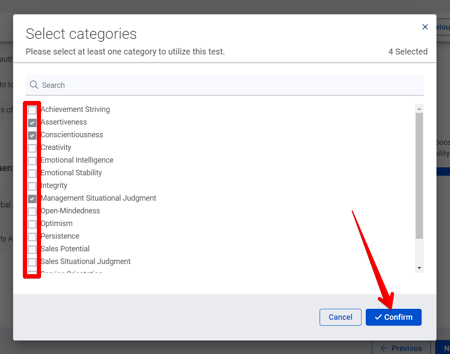
15\. Use the drop-down menu under **Select Hiring Process** to choose the hiring process for jobs posted from this template.
16\. Select an **Offer Letter Template** for jobs posted from this template using the drop-down menu.
%20(HP+OL)%20(highlights).png?width=670&height=338&name=Create%20Job%20Template%20(1.7.26)%20(HP+OL)%20(highlights).png)
17\. Add any Forms that you'd like to include with jobs posted from this template by turning on the associated toggle.
18\. Verify the **Permissions** and **Department** (if applicable) associated with jobs posted from this template.
- To change **Permissions**, select the Location to associate with jobs posted from this template using the drop-down menu.
- This is because [Permissions are based on user access to the Location](https://support.careerplug.com/giving-users-access-to-jobs-and-applicants-via-locations?hsLang=en) associated with a job posting.
- To change the **Department**, select an option using the drop-down menu.
%20(Forms+Permissions)%20(highlights).png?width=670&height=387&name=Create%20Job%20Template%20(1.7.26)%20(Forms+Permissions)%20(highlights).png)
19\. Set the visibility of jobs posted from this template via the Posting Status.
- To make a passive job posting, turn on the **Display on career page only** toggle.
- To hide your job posting from your careers page, turn on the **Do not display on my careers page** toggle.
- To make your job posting confidential, turn on the **Make this job confidential** toggle.
20\. Click the **Save** button to finish creating your job template.
%20(Posting%20Status)%20(highlights).png?width=670&height=356&name=Create%20Job%20Template%20(1.7.26)%20(Posting%20Status)%20(highlights).png)
#### Internal name vs. Posting title
When you create a new job template, you will add both an **Internal name** and a **Posting title**.
%20(IntName+PostTitle+Desc)%20(IntNameVSPostingTitle%20highlight).png?width=670&height=265&name=Create%20Job%20Template%20(1.7.26)%20(IntName+PostTitle+Desc)%20(IntNameVSPostingTitle%20highlight).png)
The **Internal name** is the job template's name, which is not visible to applicants. The Internal name lets you create a job template specific to a location, a position type, or whatever else you might need.
The **Posting title** is the job title that will be given to any job posted using this template.
In the above example, the Internal name is "Cashier - Austin." Job seekers and applicants won't see this name. Instead, they will see "Cashier," which is the Posting title.
**Note:** Because job titles longer than 70 characters can impact visibility on job boards, CareerPlug has a 70-character limit for job titles.
### Posting a job using a job template
Once you have at least one job template in your account, when you create a new job, you will have the option to prefill the posting using one of your job templates.
On your **Jobs** page, click the **+ New Job** button in the top-right corner of the page and select **Use a Job Template** from the drop-down menu.
%20(Job+Dropdown+Template%20highlights).png?width=670&height=196&name=Jobs%20Page%2c%20Active%2c%20New%20Job%20Dropdown%20(Nav%20Bar%20Minimized)%20(Job+Dropdown+Template%20highlights).png)
From your Dashboard, you can also click the **+ Create New button** in the top-right corner of the page and select **Use a Job Template** from the drop-down menu.
Review the details of your new posting, make any desired changes, and post your job.
### Making an express post
When you create a new posting using a job template, you also have the option to make an express post. An express post is the fastest way to post a job.
To create an express post, click the **+ New Job** button in the top-right corner of the **Jobs** page and select **Use a Job Template** from the drop-down menu.
%20(Job+Dropdown+Template%20highlights).png?width=670&height=196&name=Jobs%20Page%2c%20Active%2c%20New%20Job%20Dropdown%20(Nav%20Bar%20Minimized)%20(Job+Dropdown+Template%20highlights).png)
From your Dashboard, you can also click the **+ Create New** button in the top-right corner of the page and select **Use a Job Template** from the drop-down menu.
In the Choose a Job Template pop-up, select the job template you want to use and click the **Express Post** button in the bottom-left corner.
%20(Express%20highlights).png?width=450&height=315&name=Choose%20a%20Job%20Template%20pop-up%20(1.7.26)%20(Express%20highlights).png)
When you make an express post, you only need to select an offer letter, choose the job's location and remote status, enter salary information, and set the job's posting status.
The job will be Active by default, which means that it will be posted on your careers page immediately, and sent to job boards if you have a CareerPlug [Hire](https://support.careerplug.com/benefits-of-a-careerplug-hire-subscription?hsLang=en) or [Grow](https://support.careerplug.com/benefits-of-a-careerplug-grow-subscription?hsLang=en) subscription.
When you're done configuring your express post, click the **Save** button to post your job.
### Editing multiple jobs posted from a template
If you've created and used a job template to make multiple job postings, you have the ability to edit multiple jobs at once by editing the template itself.
Edit a job template by navigating to **Settings (gear icon) \> Templates \> Job Templates** and clicking the **Edit** button next to the job template you wish to edit.
%20(7.16.26)%20Pointed%20to%20edit.png?width=670&height=290&name=Settings%2c%20Templates%2c%20Job%20Templates%2c%20Navigation%20shown%20(Nav%20bar%20minimized)%20(7.16.26)%20Pointed%20to%20edit.png)
When you edit a job template from which multiple active jobs have been posted, you can apply your changes to all of those jobs at the same time. Select the **Apply your changes to existing jobs** checkbox and then click the **Save** button.
%20(highlights).png?width=451&height=360&name=Apply%20changes%20to%20existing%20jobs%20pop-up%20(1.27.26)%20(highlights).png)
**Note:** You can only apply changes to existing jobs posted from job templates created by users in your account. When you edit a system job template provided by CareerPlug, a copy of the template will be created and the changes you make will not apply to existing jobs.
### Job template page settings
The following settings are available on your Job Templates page (**Settings \> Templates \> Job Templates**):
- You have the ability to **Lock job posting configurations to admins.** Turning on this toggle limits the changes non-admin users can make to job postings (created from templates) to choosing a location and posting status. When turned on, this setting will apply to all job templates in your account.
- You can disable any existing job template by turning off the toggle to the left. Disabled templates won’t appear in the list of available options when posting a job from a template.
- You can delete a job template by clicking the **trash can icon**. You can only delete job templates that you have created.
%20(7.16.26).png?width=670&height=289&name=Settings%2c%20Templates%2c%20Job%20Templates%2c%20Toggles%20Highlighted%20(Nav%20bar%20minimized)%20(7.16.26).png)
Need help hiring within your specific industry? CareerPlug integrates with industry-specific job platforms like [ToolBelt](https://support.careerplug.com/careerplug-partner-toolbelt?hsLang=en) and [myCNAjobs](https://support.careerplug.com/mycnajobs-integration?hsLang=en) to give you access to a larger group of qualified candidates and help you grow your winning team.
- [Troubleshooting](https://support.careerplug.com/troubleshooting?hsLang=en#main-content)
- [Contacting Support](https://support.careerplug.com/troubleshooting?hsLang=en#contacting-support)
- [Top Support Issues](https://support.careerplug.com/troubleshooting?hsLang=en#top-support-issues)
- [Video Library](https://support.careerplug.com/troubleshooting?hsLang=en#video-library)
- [Account](https://support.careerplug.com/account?hsLang=en#main-content)
- [Billing](https://support.careerplug.com/account?hsLang=en#billing)
- [Account Management](https://support.careerplug.com/account?hsLang=en#account-management)
- [Account Configuration](https://support.careerplug.com/account?hsLang=en#account-configuration)
- [Notifications](https://support.careerplug.com/account?hsLang=en#notifications)
- [Getting Started](https://support.careerplug.com/account?hsLang=en#getting-started)
- [What's New?](https://support.careerplug.com/whats-new?hsLang=en#main-content)
- [Monthly Updates](https://support.careerplug.com/whats-new?hsLang=en#monthly-updates)
- [Announcements](https://support.careerplug.com/whats-new?hsLang=en#announcements)
- [Attract: Job Postings](https://support.careerplug.com/attract-job-postings?hsLang=en#main-content)
- [Hiring Process](https://support.careerplug.com/attract-job-postings?hsLang=en#hiring-process)
- [New Job Postings](https://support.careerplug.com/attract-job-postings?hsLang=en#new-job-postings)
- [Existing Job Postings](https://support.careerplug.com/attract-job-postings?hsLang=en#existing-job-postings)
- [Attract: Targeted Recruiting](https://support.careerplug.com/attract-targeted-recruiting?hsLang=en#main-content)
- [Careers Page](https://support.careerplug.com/attract-targeted-recruiting?hsLang=en#careers-page)
- [Job Boards](https://support.careerplug.com/attract-targeted-recruiting?hsLang=en#job-boards)
- [Additional Sources](https://support.careerplug.com/attract-targeted-recruiting?hsLang=en#additional-sources)
- [Evaluate: Communication](https://support.careerplug.com/evaluate-communication?hsLang=en#main-content)
- [Applicant Management](https://support.careerplug.com/evaluate-communication?hsLang=en#applicant-management)
- [Applicant Tracking](https://support.careerplug.com/evaluate-communication?hsLang=en#applicant-tracking)
- [Messages](https://support.careerplug.com/evaluate-communication?hsLang=en#messages)
- [Contacting Applicants](https://support.careerplug.com/evaluate-communication?hsLang=en#contacting-applicants)
- [Evaluate: Interviews](https://support.careerplug.com/evaluate-interviews?hsLang=en#main-content)
- [Pre-Interview](https://support.careerplug.com/evaluate-interviews?hsLang=en#pre-interview)
- [Post-Interview](https://support.careerplug.com/evaluate-interviews?hsLang=en#post-interview)
- [Assessments](https://support.careerplug.com/evaluate-interviews?hsLang=en#assessments)
- [Onboard: New Hires](https://support.careerplug.com/onboard-new-hires?hsLang=en#main-content)
- [Making Your Hire](https://support.careerplug.com/onboard-new-hires?hsLang=en#making-your-hire)
- [New Hire Assignments](https://support.careerplug.com/onboard-new-hires?hsLang=en#new-hire-assignments)
- [Employee Access](https://support.careerplug.com/onboard-new-hires?hsLang=en#employee-access)
- [Onboard: Management](https://support.careerplug.com/onboard-management?hsLang=en#main-content)
- [Onboarding Configuration (Classic)](https://support.careerplug.com/onboard-management?hsLang=en#onboarding-configuration-classic)
- [Checklists (Classic)](https://support.careerplug.com/onboard-management?hsLang=en#checklists-classic)
- [Completed Onboarding](https://support.careerplug.com/onboard-management?hsLang=en#completed-onboarding)
- [Engage: Existing Employees](https://support.careerplug.com/engage-existing-employees?hsLang=en#main-content)
- [Integrations](https://support.careerplug.com/engage-existing-employees?hsLang=en#integrations)
- [Employer Forms](https://support.careerplug.com/engage-existing-employees?hsLang=en#employer-forms)
- [Employee Retention](https://support.careerplug.com/engage-existing-employees?hsLang=en#employee-retention)
- [Engage: Reporting](https://support.careerplug.com/engage-reporting?hsLang=en#main-content)
- [Charts](https://support.careerplug.com/engage-reporting?hsLang=en#charts)
- [Reporting](https://support.careerplug.com/engage-reporting?hsLang=en#reporting)
- [Compliance](https://support.careerplug.com/engage-reporting?hsLang=en#compliance)
- [Marketplace](https://support.careerplug.com/marketplace?hsLang=en)
[](https://support.careerplug.com?hsLang=en)
Handcrafted in Austin, Texas
© 2026 CareerPlug. All rights reserved.